
Inventory Data Export Guide: Why CSV is the Gold Standard over PDF
Preparing your database is the most critical step of a successful inventory mission. At Zenbaki, we believe technical barriers shouldn't slow your business down. This guide explains how to extract your data correctly, and how we help you if the process gets complex.
🏆 The Golden Rule: Export, but Don't Open
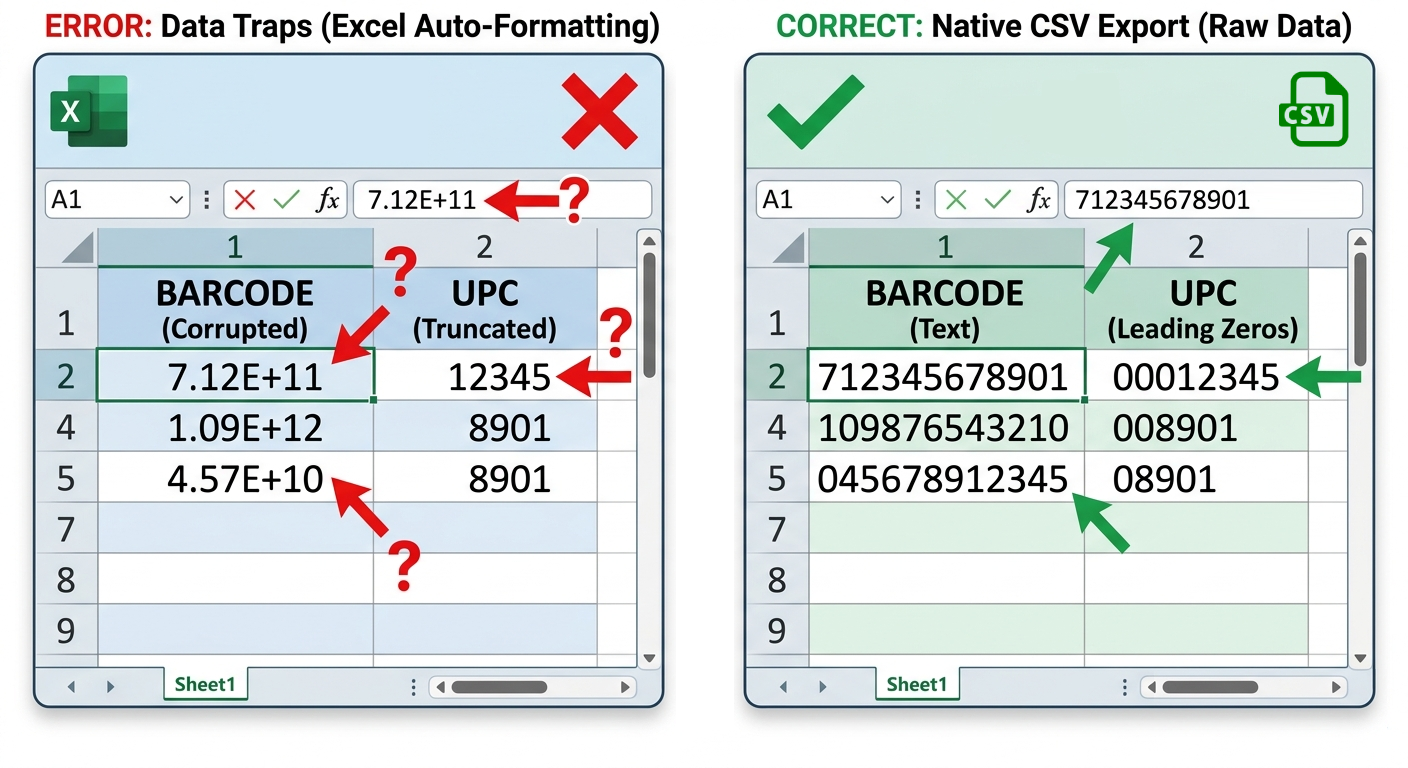
Most POS, ERP, and WMS systems (such as Shopify, Square, PDI, SSCS, Lightspeed) export perfectly formatted data. However, the moment you open a .csv file in Excel to "check it," Excel may automatically corrupt your barcodes by stripping leading zeros or converting long numbers into scientific notation.
Our Advice: Save the file from your software and email it directly to our team. We'll handle the validation for you.
Why CSV is the Gold Standard for Audit Accuracy
At Zenbaki, we have the technical capability to extract data from PDF reports. However, it is important to understand the "Format Gap": A PDF is effectively an image, not exploitable data.
It is designed for printers, not for data exchange.
To get data from a PDF, we can use OCR (Optical Character Recognition) or complex scraping tools. This process is inherently error-prone, especially with long UPCs that can be misread or truncated. In contrast, a CSV export provides a direct, 1:1 representation of your database records, ensuring maximum accuracy and speed during the audit process.
PDF (Higher Risk)
- Data Nature: A static "picture" of text.
- Character Hallucination: An '8' being read as a 'B'.
- Truncation: Long UPCs being cut off by margins.
- Noise & Bloat: Titles, page numbers, and footers get "baked" into the data.
CSV (Gold Standard)
- Data Nature: Raw, exploitable data records.
- 1:1 Accuracy: Clean rows with zero layout interference.
- Speed: Our system imports 10,000+ items instantly.
- Rich Detail: Effortless to match UPC to Price or Category.
Essential Data Columns Explained
To provide a high-precision audit, we look for the following "headers" in your export. Don't worry if your columns have different names; we map them manually for every client.
| Required Data | Common Jargon | Why It Matters |
|---|---|---|
| Product Identifier | UPC, Barcode, EAN | The "Primary Key" our system looks for.* |
| System SKU | Item ID, Part # | Your internal reference code for reconciliation.* |
| Description | Product Name | So we can verify "Soda 12oz" isn't "Soda 20oz". |
| Supposed Stock | QoH, On Hand | Your current theoretical stock levels. |
| Valuation | Retail, Cost | Allows us to calculate your total inventory value. |
| Category | Dept, Group | Enables reporting by product type (e.g., Beverages). |
| Location | Aisle, Bin, Zone | Tells us exactly where the stock should live. |
While we only require a few key fields to perform a count, including additional data points allows us to generate a much deeper 'Intelligence Report' for your business. Think of these extra columns as the difference between a simple total and a strategic roadmap for your inventory.
*We can use any identifier your system provides, whether it's a UPC, an internal SKU, a Part Number, or a custom Reference ID. The only requirement is that the data in your file must be a 1:1 match with the barcode physically labeled on your products or shelves.
What if you have multiple identifiers? If your system exports several different IDs (for example, both a Manufacturer UPC and an Internal SKU), we will work together to determine which one is the most reliable for the count.
Common Inventory Export Errors and How to Prevent Them
Even the best POS systems can sometimes "scramble" data during the export process. Identifying these common formatting issues early ensures that your audit remains accurate and your reconciliation is seamless.
The Scientific Notation Error
This occurs when Excel misinterprets a long barcode as a mathematical value. If a barcode like 712345678901 appears in a cell as 7.12E+11, the data is corrupted. Once saved in this format, the original barcode is lost.
Leading Zero Stripping
Standard spreadsheet software often "cleans" away the starting zero on UPCs. If your system exports a pharmacy or tobacco UPC as 8551 instead of 08551, our system will flag it as an unknown item. This is a common issue with CSV files opened in standard spreadsheet software.
The "Active Only" Filter (Completeness)
You must provide every SKU that our team is expected to scan. Many systems default to exporting only "Active" items; however, if a product is physically present but marked as "Discontinued" or "Inactive" in your software, our system will not recognize it. Ensure your export includes all items in the areas we are auditing, regardless of their system status.
Duplicate Barcodes & Multiple Vendors
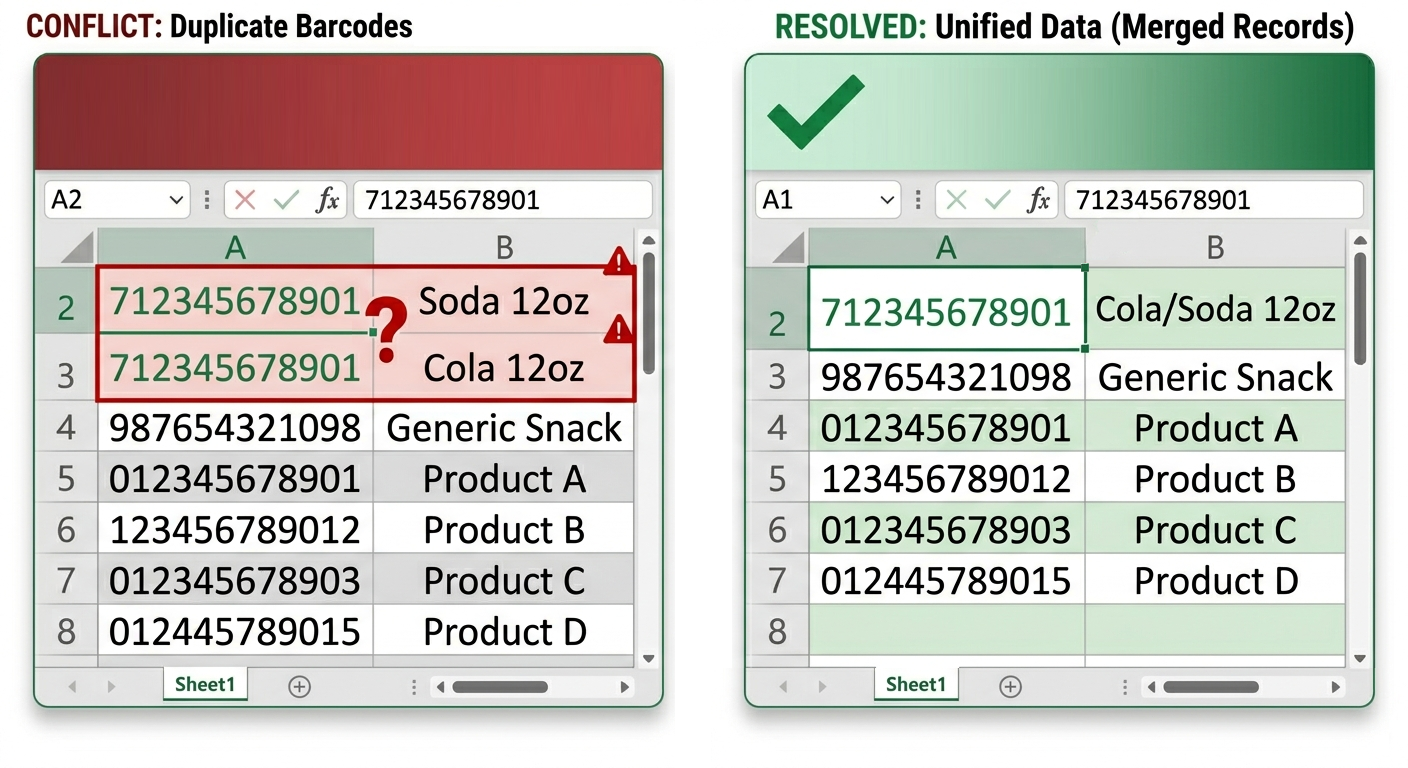
Conflicts arise when the same barcode is assigned to multiple entries. This often happens with "family" items (multiple flavors sharing one UPC) or when a product is sourced from multiple vendors and listed twice in your database. Before the audit, we must identify these duplicates and decide whether to merge them or assign a primary record to avoid valuation errors.
Report vs. Raw Data
It is vital that you export the raw data records rather than a summary report. A report typically groups items together to provide totals (e.g., total value per category), which is not exploitable for a physical count. We require the full, itemized details for every individual SKU in your system.
Skip the Spreadsheet Stress: The safest way to handle these issues is to export the file and send it to us immediately. We use our proprietary tools to check for duplicates, verify completeness, and recover missing zeros that standard software might hide.
Different Names, Same Logic: Common Software Aliases
Every software has its own language. If you can't find a direct 'Export' button, try looking for these common menu labels:
📤 To Export Data
- Item Master / Product List
- Pricebook Maintenance
- Back Office Utilities
- Mass Update / Mass Export
- Bulk Data Export
- Data Portability
📥 To Import & Reconcile
- Inventory Reconciliation
- Physical Count Import
- Stock Adjustment / Delta
- Variance Adjustment
- Inventory Post / Commit
- Audit Upload Utility
💡 Pro-Tip: Consult your POS or ERP support guide for their "Import Template." Using their exact expected format is the fastest way to ensure a successful data sync. Some systems are highly sensitive to specific file encoding (like UTF-8) or require columns to be in a very specific sequence to process correctly. Every system has a unique "handshake". Even if the data is correct, the file might fail if the headers or file extension don't match their exact specifications.
Frequently Asked Questions
My POS only exports PDF. Can you still help with the inventory count?
Absolutely. Unlike national giants that might reject your data, Zenbaki is built to be agile. We can use OCR or specialized scraping tools to convert your PDF, though we'll work with you to find a native export for future counts.
Our goal is to help you build a sustainable process, and that often starts with meeting you where you are. We can handle the technical heavy lifting, but we also want to empower your team to eventually take control of the export process for maximum efficiency in future audits.
Why is CSV better than PDF for inventory audits?
A CSV is raw, exploitable data that preserves database integrity. PDFs are essentially 'images' of data that include layout noise like page headers, footers, and titles which can corrupt the import process.
While PDFs may look nice, they often require manual cleanup and are prone to errors during data extraction. CSVs, on the other hand, can be directly imported into our system with minimal processing, ensuring a smoother and more accurate audit.
How do I fix scientific notation errors in my inventory export?
To prevent scientific notation (e.g., 7.12E+11), never open a raw CSV export in Excel before sending it. If you must open it, ensure the barcode column is formatted as 'Text' to preserve the full number.
However, our best advice is to save the file directly from your POS/ERP and email it to us without opening. We have tools to validate and clean the data on our end, ensuring your audit goes smoothly without any Excel-induced errors.
Can I import audit results back into my POS system?
Yes. Once the audit is complete, Zenbaki provides a clean, reconciled CSV file formatted for your system. This file can be used for direct inventory reconciliation or a physical count import.
Important: Before we finalize your data, we recommend checking with your software provider or help documentation to confirm their required import format. Every system has a specific "handshake", some require specific column orders or file encodings. Knowing these requirements ahead of time ensures a seamless, one-click update to your stock levels. We are always happy to help walk your team through this final reconciliation step.
Why is it better to include 'Location' or 'Category' in my data?
While we can perform a count with just barcodes and descriptions, including Category and Location transforms a simple list into a powerful diagnostic tool.
By separating what an item is from where it's supposed to be, we can identify the difference between a "missing" item and a "misplaced" one. This level of detail helps you spot organizational issues, prevents you from reordering stock that is simply sitting in the wrong aisle, and gives you a much clearer picture of your store's physical health.
Can your system handle massive databases?
Technically, yes. Our hardware and software are optimized for high-volume environments and remain lightning-fast whether you have 200 SKUs or 10,000.
However, while our tech is powerful, our mission is intentional: we specialize in serving small to medium-sized businesses. Instead of chasing global, big-box enterprises, we focus our energy on providing agile, personalized, and expert-level service to the independent retailers and regional chains that deserve more than a "one-size-fits-all" approach.